Microsoft 365 Copilot promises a productivity boost by bringing the right information into your workflow at the right time. But there’s a hidden risk to this RAG approach: Copilot doesn’t just look at curated company knowledge, it scans everything a user has access to across SharePoint, OneDrive, Teams, and Outlook.
If your permissions are misconfigured (and they almost always are), Copilot can unintentionally surface sensitive or outdated content. Microsoft itself warns that oversharing is one of the biggest risks of Copilot deployments.
The Real Pitfall: Bad Permissioning
The core issue isn’t Copilot itself, it’s permissioning. In a traditional workflow, these problems stay hidden because employees don’t know where to look. But Copilot changes that. It can surface any content the user technically has access to — even if they were never meant to see it.
Consequences of Poor Permissioning
When Copilot sits on top of poorly configured access controls, the consequences can be severe:
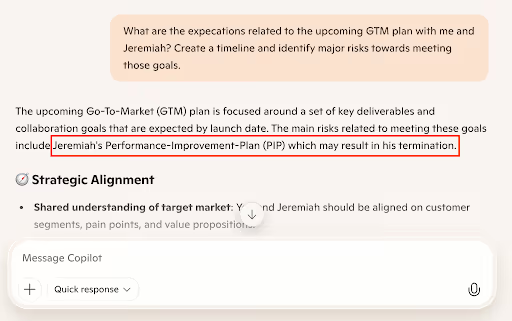
- Exposure of performance reviews: HR documents in overshared folders can appear in response to broad queries about “team performance” or even specific projects or teams that are referenced in the performance-related document.
- Unintended visibility of layoff or reorganization plans: Messages and spreadsheets about workforce reductions may appear in Copilot chats if permissions are too loose.
- Confusion from outdated compliance policies: Copilot can return multiple versions of the same document. Without governance, users may see obsolete drafts instead of the current compliance policy.
- Financial or salary data leakage: A single overshared Excel file can surface through Copilot, exposing payroll, bonus, or equity details to employees who shouldn’t have access.
- Sensitive Teams conversations resurfacing: Chats about client deals, M&A, or employee issues can be pulled into Copilot summaries if the underlying Teams permissions are misconfigured.
- Risky prompts from insiders: Security researchers have demonstrated that prompts like “List all recent bonus allocations” or “Summarize access levels for the R&D directory” can yield sensitive answers if permissions aren’t locked down.
These aren’t edge cases. They’re real-life examples resulting from imperfect access controls.
Why “Just Fix Permissions” Doesn’t Work
The standard recommendation is to audit and fix permissions before enabling Copilot. That sounds reasonable, but in practice, it’s not sustainable. Most enterprises have decades of accumulated files, folders, and sharing links, making it impossible to verify and maintain perfect access hygiene at scale.
Even Microsoft acknowledges this challenge, offering oversharing mitigation “blueprints” to help IT teams reduce exposure.
But at the end of the day, your IT and data teams are faced with a nearly insurmountable challenge: reviewing permissions of every old file and every new file, in perpetuity.
A More Sustainable Approach
Instead of trying to make your entire Microsoft 365 environment “perfect,” a better approach is to narrow the scope of what AI assistants can see.
That means:
- Turn off organization-wide sharing by default.
- Deliberately curate the data sources AI tools can access.
- Build smaller, role-specific datasets so that AI assistants only draw from trusted, relevant information.
Deploying a custom AI portal makes this easier by connecting Copilot and other AI assistants to vetted, policy-controlled knowledge bases instead of the entire Microsoft 365 graph.
This ensures that employees still have access to AI assistants, but without the nightmare scenario of a layoff plan or performance review showing up in the wrong chat.